Installing device driver for computer hardware devices

In the previous post, I had discussed about viewing installed or not installed devices. This post tells you how to install device driver for computer hardware devices.

PROCEDURE:

If you have installed WINDOWS operating system freshly, some on-board motherboard hardware devices such as display, audio, enternet, etc or if you have installed any additional hardware devices other than on-board hardware devices such as display, audio, enternet, etc need to be detected using drivers manually. All motherboard manufacturers provide drivers CD/DVD along with the  motherboard when purchased.

If the drivers CD provided is AUTOPLAY (when CD/DVD is inserted into the CD/DVD drive the drivers application software runs automatically showing the list of motherboard drivers to be installed) select the devices from the list whose drivers needs to be installed and click on install or follow the instructions provided in the drivers application software till you finish the installation. Once finished installation restart the computer if needed to make the drivers detect the hardware devices.

If the CD/DVD provided is not AUTOPLAY, then follow the procedure as shown below.

Go to "START" and click on "SETTINGS" and click on "CONTROL PANEL" to open CONTROL PANEL window. Inside CONTROL PANEL window double click on "SYSTEM" to open "SYSTEM PROPERTIES" window. In the "SYSTEM PROPERTIES" window click on "HARDWARE" tab. Now you should be able to see a "DEVICE MANAGER" or hold the "WINDOWS KEY" and press "R" to open RUN window or go to "START" and click on "RUN" to open RUN window. Now type "devmgmt.msc" in the RUN window and click OK button or press "ENTER" key to open DEVICE MANAGER window.

In the DEVICE MANGER list look for "OTHER DEVICES". The drivers for the hardware devices list shown under "OTHER DEVICES" are not installed.
 
Now insert the drivers CD/DVD provided by the motherboard manufacturer into the CD/DVD drive. Now double click on the first device under the "OTHER DEVICES" list. A new window opens up showing the properties of that particular device. Now click on "RE-INSTALL DRIVER" button to open "HARDWARE UPDATE WIZARD" window.
Now select "No. not this time" and click "NEXT" to go to next step. 

In the next step select "INSTALL FROM A LIST OR SPECIFIC LOCATION (ADVANCED)" and click on "NEXT" to go to next step. 

Here select only "SEARCH REMOVABLE MEDIA (FLOPPY, CD_ROM...)" and click "NEXT" to begin installation of driver from the CD/DVD.

It automatically detects the drivers for the particular hardware device. Finally click "FINISH" to complete the device driver installation. Follow the same procedure for installing device driver for all the devices that are not installed and that are shown in the list under "OTHER DEVICES" list.

NOTE:

WINDOWS XP operating system service pack2 or WINDOWS XP operating system service pack3 comes with most motherboard hardware components drivers integrated. It all depends on the type and the manufacturer of the motherboard. As a result, some motherboards drivers need not be installed manually as the device drivers would have been installed when installing operating system. If some motherboard hardware drivers not installed during installation of WINDOWS operating system, then you need to install drivers manually for those hardware components.

Google documents, now with web fonts!

(Cross-posted from the Google Docs Blog)

In the past month we’ve made updates both big and small to Google Docs, and today we’re announcing one more: web fonts in Google documents. Often the best way to get your point across is to present your idea in a creative, captivating way. Today, we added over 450 new fonts to Google documents to make it easier for you to add a little something extra to whatever you create.

To use these new fonts, click on the font menu and select “Add fonts” at the very bottom, which will take you to a menu of all the Google Web Fonts available.


Once you’ve selected new fonts, you’ll be able to select them from the font menu.


Whether you’re looking for the perfect font for your first comic book or fancy handwriting for your wedding invitations, we hope you try out the new fonts and create some eye-catching documents.

In addition to hundreds of new fonts, we have a lot of other exciting updates to report:
  • Google Drive launched as a place where you can create, share, collaborate, and keep all your stuff. 
  • There are now a few more options for inserting images in Docs, including inserting from Google Drive, searching for images from the LIFE Photo archive, or taking a snapshot with your webcam. 
  • Charts in spreadsheets now has support for minor gridlines and options to customize the formats of axis labels 
  • Accessibility in Docs got better with support for screenreaders in presentations and with the addition of NVDA to our list of supported screenreaders. 
  • From File > Page setup... you can now set the default page size for your new documents. 
  • It's now easier for speakers of right-to-left languages by automatically showing bidirectional controls when you type in a language that might use them. 
  • Apps Script had many improvements, including 
    • A new ScriptService for programmatically publishing your scripts and controlling when they run. 
    • A new function to find the root folder of someone’s Drive. 
    • An increase in the allowed attachment size in emails from 5MB to 25MB. 
    • An increase in the size of docs files you can create from 2MB to 50MB. 
  • There are now over 60 new templates in our template gallery.

    How to know devices that are not properly installed in WINDOWS

    In a computer any devices (example: DVD Writer, Display, Network card or Ethernet card or any external devices attached, etc) to work properly you need to install driver for that particular device. If you are facing problem with any devices not working properly or not getting detected properly, then you might have not installed the device driver properly or if already installed then the device driver might have been corrupted or the device hardware itself should be having a problem. All the computer hardware components or devices installed successfully or unsuccessfully can be viewed in DEVICE MANAGER.

    To open DEVICE MANAGER, go to "START" and click on "SETTINGS" and click on "CONTROL PANEL" to open CONTROL PANEL window. Inside CONTROL PANEL window double click on "SYSTEM" to open "SYSTEM PROPERTIES" window. In the "SYSTEM PROPERTIES" window click on "HARDWARE" tab. Now you should be able to see a "DEVICE MANAGER" button.
    Click on "DEVICE MANAGER" to open "DEVICE MANAGER" window to see the list of all installed devices in your computer.
    The easiest way to open DEVICE MANAGER using keyboard is hold the "WINDOWS KEY" and press "R" to open RUN window or go to "START" and click on "RUN" to open RUN window. Now type "devmgmt.msc" in the RUN window and click OK button or press "ENTER" key to open DEVICE MANAGER window.

    In the device list if any device which has a yellow question mark with exclamatory symbol on the left side of the device name as shown below, means that particular device is not installed. In order to make that particular device work properly, you should install driver for that device. In the below image you can see that there is a yellow question mark with exclamatory symbol next to "EHTERNET CONTROLLER". This means the network or ethernet driver is not installed. In order to make the ETHERNET CONTROL work, you need to install the ethernet or network driver.
    Sometimes some devices will not work even if the driver is installed properly. For example, consider sound driver is installed properly and you are not be able to hear the sound. Then first check whether the volume control in the STATUS bar is MUTE. If it is not mute then re-installing the device driver for sound card. If you still cannot hear the sound, then chances are more that your sound card hardware device is not functioning properly.

    Transfer data or content from one IDE hard disk to another IDE hard disk (Part 2)


    PROCEDURE FOR CONNECTING TWO HARD DISK DRIVES TO TWO INDIVIDUAL IDE DATA CABLES

    Usually the old motherboard has two IDE slots. You can connect one IDE slot to hard disk drive and the other IDE slot to IDE CD-ROM or Combo Drive OR DVD Drive

    Now connect one end of the first IDE data cable to hard disk drive ( MASTER or first hard disk drive ) and the other end to first IDE port of the motherboard. Similarly connect second IDE data cable to the hard disk drive ( SLAVE or second hard disk drive )and the other end to the second free IDE slot on the motherboard as shown below.


    Note :

    (1) Jumper pin settings vary depending on the brand of the hard disk manufacturer.
    (2) Most of the recent motherboards will have only one or will not have IDE slot. Instead will have only SATA port.

    Transfer data or content from one IDE hard disk to another IDE hard disk (Part 1)

    If you want to transfer large data or content from one hard disk to another hard disk, it just simply cannot be done by connecting two hard disk and switching on the system. Here is the procedure to copy data from hard disk to hard disk without any hassle.

    Always remember whenever you want to copy from hard disk to hard disk, one hard disk must be MASTER and another hard disk must be SLAVE provided if you are connecting both hard disk to a single IDE data cable. If you are connecting two hard disk using two IDE data cables, then no need to make either of the hard disk as MASTER or SLAVE.

    PROCEDURE IF YOU ARE CONNECTING TWO HARD DISK DRIVES USING SINGLE IDE DATA CABLE

    In SEAGATE brand hard disk there is a jumper pin setting space between the IDE data cable slot where you fix the data cable to hard disk and power slot where you fix the power cable which comes from SMPS (power supply) as shown in the image below

    Click here to see the purpose of using a jumper.
    By default when you purchase a new hard disk the jumper pin is set to MASTER. To make the hard disk SLAVE remove the jumper pin (In Seagate Hard Disk Drive). Removing the jumper pin makes the hard disk to act as SLAVE.

    All the hard disk manufacturers have a jumper pin settings diagram pasted on the hard disk as shown below.
    After making sure that one hard disk is master and the other is slave, connect both hard disks as shown below.
    Now you should be able to see the drives of both hard disk drives when you switch on the system.

    The IDE data cable comes with two and three slots. You need to use three slots IDE cable if you are connecting two hard disk using only one IDE data cable. Out of three slots first slot should be connected to MOTHERBOARD also called as MAIN BOARD and the second free slot should be connected to MASTER hard disk drive and the third free slot has to be connect to SLAVE hard disk drive.

    There are chances when two hard disk are connected to a single IDE data cable, sometimes the SLAVE or MASTER hard disk will not be detected. In that case you have to connect both hard disk with individual IDE data cables ie, one ide data cable for MASTER hard disk drive and another IDE data cable for SLAVE hard disk drive.

    Note:
    (1) Jumper pin settings vary depending on the brand of the hard disk manufacturer.
    (2) This method is not required if both hard disk drives are of SATA type. For SATA type hard disk drive, simply connect both hard disk drives to the mother board using individual SATA data cables. After connecting properly you should be able to see both hard disk drives when your windows boots up.

    ttfautohint reaches its $30,000 funding target!

    The Google Web Fonts team would like to congratulate Werner Lemberg on reaching his $30,000 funding target for ttfautohint.

    Here is a fun video that explains what the project is about:


    As a true open source project, it has sought contributions from across the industry. Google Web Fonts, FontLab and many individuals have given the project financial support. This week the Extensis WebINK team announced they have enabled Werner to reach his goal:

    blog.webink.com/webink/extensis-webink-funds-open-source-ttfautohint-better-fonts-on-screen

    You can download a graphical user interface for GNU/Linux and Windows today, a command line tool for Mac OS X, and of course the source code, from the project homepage:

    www.freetype.org/ttfautohint

    Congratulations to All Designers of Tipos Latinos 2012!

    ¡Felicitaciones a todos los diseñadores de Tipos Latinos 2012!

    The Google Web Fonts team would like to extend our congratulations to all designers selected for the Tipos Latinos 2012 Biennial.

    El equipo de Google Web Fonts felicita a todos los diseñadores seleccionados en la Bienal Tipos Latinos 2012.

    We were looking forward to seeing the results of this prestigious review of work by typeface designers across Latin America because we have been working with many of them.

    Tenemos muchas ganas de ver los resultados de este prestigioso evento de diseño tipográfico de Latinoamérica, porque nosotros estuvimos trabajando con muchos de ellos.

    Around a quarter of the typefaces featured are available in Google Web Fonts today – or very soon:

    Aproximadamente un cuarto de las tipografías seleccionadas ya están disponibles en Google Web Fonts o lo estarán muy pronto:


    • Buenard, by Gustavo J. Ibarra (Argentina)

    • Petrona, by Ringo Romei (Argentina)

    • Ruluko, by A. Sanfelippo, A. Díaz y M. Hernández (Argentina, Colombia, Colombia)

    • Unna, by Jorge de Buen (Mexico)

    • Acme, by Juan Pablo del Peral (Argentina)

    • Macondo, by John Vargas Beltrán (Colombia)

    • Rufina, by Martín Sommaruga (Uruguay)

    • Abril, by José Scaglione y Veronika Burian (Argentina)

    • Alegreya, by Juan Pablo del Peral (Argentina)

    • Almendra, by Ana Sanfelippo (Argentina)

    • Andada, by Carolina Giovagnoli (Argentina)

    • Bitter, by Sol Matas (Argentina)

    • Delius, by Natalia Raices (Argentina)

    • Rosarivo, by Pablo Ugerman (Argentina)


    The Alegreya family (including its Small Caps sister family) received a "Mención de Excelencia" (Recognition of Excellence) – congratulations Juan Pablo!

    La familia Alegreya (que incluye una familia Small Caps) recibió la única "Mención de Excelencia" que en esta edición entregó el Jurado. ¡Felicitaciones, Juan Pablo!

    You can read more about Tipos Latinos at tiposlatinos.com.

    Pueden ver más sobre Tipos Latinos en tiposlatinos.com.


    How do you know if you can trust a website?


    We use anti virus software, firewalls and spyware blocking software to keep our computers safe but it may not be enough. The truth is, if you continue to go to "bad websites" eventually something is going to get through and you'll be calling a company like ours for virus removal. So how can you avoid sites that may be "untrustworthy?"

    Web of Trust is a free browser plugin that you should really look into. This great little utility ranks websites in a number of ways including trustworthiness, privacy, vendor reliability and child safety. It uses a simple, easy to recognize "traffic light" method of green, yellow and red color to inform you of the site's rating in any particular category. Based on the rating, you determine if you want to visit the site or not. It's simple, easy to use and gives you one more line of defense in the battle to keep your computer safe!

    Is Web of Trust Perfect?


    Of course it isn't perfect and it can't prevent you from going to bad sites if you choose to ignore the warning. We installed this on a customer's computer that was recently infected and cleaned up. After getting their computer back the customer called to explain that Web of Trust was giving  a red light on a particular page that they liked to visit. It was a trustworthiness and privacy warning but the customer insisted that they wanted to visit that page. A few days later the computer was back in for a virus!

    Web of Trust is not a replacement for an anti virus software, it's simply one more layer of security. If you've been using an anti virus software and find yourself getting infected perhaps you might want to consider a smarter anti virus solution, one that is actually monitored by professionals to make sure it's working! We also highly suggest that our customers consider backing up their data on a regular basis. A great solution is a cloud based backup that simply operates in the background so you don't have to worry about it. This way, if you do get a virus you can be sure that your music, movies, pictures and documents are safe and sound.

    Blueline Network Solutions is a computer sales, service and repair facility providing service to consumers, businesses and educational institutions. We can be contacted at (888) 748-2583 or by visiting our website.
    Your own personal cloud...

    Over the past few years we've heard more and more about "the cloud". At first it seemed to be some sort of mythical, magical wonderland but the truth is that the cloud is just the internet. I say "just the internet" as if it means nothing but the internet is of course much bigger than that. Mbaonline recently posted an Infographic detailing a day in the life of the internet that demonstrates just how much we use the web! It's a pretty amazing graphic with some interesting statistics (daily iPhone sales outpace daily birth rates!).

    Looking at the article got me thinking about the internet, the cloud and about how we access our personal data. Whether we realize it or not, many of us are developing our own personal cloud. Each day the use of web connected smart phones and tablet devices is growing as people are recognizing the value in staying connected. Companies like Evernote have developed great applications that let us share notes between devices and access them anywhere we like. Apple and Google both give users the ability to store music on the web instead of their home computer and access it from anywhere we like.

    For our company, we use an application to provide a cloud based backup of our critical files and data (if you aren't backing your info up to the cloud you really should consider it). This particular product also gives us the ability to provide our staff and customers with a "Cloud Drive" on their computers. The Cloud Drive acts like any storage device (hard drive, USB flash drive, etc...) and lets you drag and drop files to it for storage. No matter where you are, as long as you have an internet connection you can access the files from any device including smart phones, tablets and traditional computers. I often use it for storing information I may need for a meeting. That way, I have it available to me at any time! One of our customers uses it to allow their marketing team to save information to it so that the sales team can access the information anytime, anywhere on their tablets.

    So just how are you using the cloud and what does your personal cloud contain? Music, photos, video, what else? If you give it some thought you might be surprised at how much you use "the cloud".

    Gone Phishin'

    Sadly, that's not a "typo" in the title, but a reference to a nasty little practice that some folks have of trying to get you to visit a malicious site and give up your personal information. According to Wikipedia, "Phising is a way of attempting to acquire information such as usernames, passwords and credit card details by masquerading as a trustworthy entity in an electronic communication." 

    Most often, your e-mail is the primary target for phishing scams although various social networking sites are sometimes utilized by scammers to make posts with links to the offending site. You can't really blame your e-mail client, ISP or favorite social networking site, these messages arrive with professional-looking logos and legitimate looking documentation that’s extremely convincing. All that's required to spring the trap is for you to follow the link they provide!
    Clicking the link may take you to a very legitimate looking site that asks you to confirm your login information, social security numbers, passwords, etc... In fact, some phishing attempts have become so sophisticated that they can send you to a legitimate site (a bank for example) and then generate a pop-up window that asks you to confirm your information. In this case, the main page underneath the pop-up is a legitimate site, the pop-up is the actual scam!
    So how can you avoid phishing scams?

    If you receive an e-mail asking you to visit a Web site, you can find out who’s behind the message by checking the sender’s e-mail through WHOIS, before you click anything! Here’s how to do it:
    1. DO NOT CLICK THAT LINK!
    2. Hover your mouse over the link and copy the domain for the address that your e-mail client (Outlook for example)  displays. If you can't click inside the address box and highlight it, copy it down on a piece of paper. The domain is the component that is in front of dot com. For instance, the domain for http://bluelinenetworksolutions.com/ is  bluelinenetworksolutions .
    3. Point your Web browser to http://www.whois.net.
    4. Enter the domain from the e-mail’s link in the WHOIS Lookup control and click Go.
    5. WHOIS will display details about the site, including the company or person who registered it.
    If your e-mail’s supposedly from a bank or legitimate institution but is registered to some company you never heard of, or even an individual out of the country, chances are this is a phishing attempt! Do yourself a favor and don't take the bait!
    It's possible that the info you receive from WHOIS still doesn't provide you with the answer that you need. In that case, try to track down the phone number or actual website address for the company and see if things are legitimate. I remember a recent e-mail I received where all of the information was credible except for a phone number that was provided in the e-mail. When I tracked the legitimate company down I found out that they were aware of the scam being perpetrated in their name and an investigation was underway!

    A few tips for avoiding phishing scams are:

    • If you receive an e-mail asking you to confirm information for your bank, credit card company, etc.. and it contains a link, don't follow the link. Close the e-mail and visit your bank's site the way you normally would.
    • Always make sure you are entering private information in on a secure website. These sites start with "https://" and a small "lock" icon will appear to confirm that the site is secure. If you click the lock icon the site's security information will come up and you can see who it is registered to.
    • Keep a close watch on the actual url of the site that you are at. For example, the text may say one thing but the link may lead you someplace else. In otherwords, if the link is supposed to go to "www.myfavoritebank.com" but the address in the toolbar says "www.yougotphished.com" then you need to get out fast!

    If you'd like more information on how you can avoid phishing attacks, the FTC has published an article that can be found HERE. If you'd like more information on Blueline Network Solutions please feel free to visit our website at http://bluelinenetworksolutions.com or check us out on Facebook at https://www.facebook.com/Shopblueline.

    How to Setup a Simple Multi-Account Avaya Meet-Me Conference

    The free and built-in 6-party Avaya Meet-Me Conference feature is often missed or not setup.  To get you started, we’ve put together a quick and simple five step administration guide for you.

    In this example, the following ranges were used:
    • Extensions 1200 through 1206 = Meet-Me Announcements (should be non-DID)
    • Extension 4000 = Main Meet-Me Access (should be a DID and optionally associated with a toll-free number)
    • Extensions 1401 through 1499 = Individual Meet-Me Accounts (only 1401 setup in our example however additional accounts can be configured for people, groups or even conference rooms)

    STEP 1: SETUP THE MEET-ME ANNOUNCEMENTS 1200-1206: [add announcement 1200]

    Record the following announcements:
    1200 = “Welcome to the XYZ Company Conference Center. Please enter your bridge number.”
    1201 = “The number you have entered is invalid. Please enter the number again.”
    1202 = “The number entered is invalid. Please contact the conference call coordinator to make sure you have the correct information. Goodbye.”
    1203 = “Your conference call is already in progress.”
    1204 = “You are the first party to join the call.”
    1205 = “This meet-me conference is filled to capacity. Please contact the conference call coordinator for assistance. Goodbye.”
    1206 = “If you have a security code, please enter it now or simply press the pound sign to continue.”

    STEP 2: SETUP THE MEET-ME MAIN ACCESS VECTOR 250: [change vector 250]


    STEP 3: SETUP THE MEET-ME MAIN ACCESS VDN 4000: [add vdn 4000]

    STEP 4: SETUP THE MEET-ME ACCOUNT VECTOR 251: [change vector 251]


    STEP 5: SETUP THE MEET-ME INDIVIDUAL ACCOUNT VDN’S 14XX: [add vdn 1401]


    In this example you can setup up to 100 individual Meet-Me accounts (14XX) pointed to the same vector 251, however the limit really depends on your server type and needed PSTN trunking for external callers.

    To use the 6-party Meet-Me Conferencing in this configuration, the account holder of x1401 would send out an invite for the following ad-hoc meeting:  (XXX) XXX-4000 x1401 (internal users only have to dial x1401)
    Notes:  Meet-Me Conference is available with R11 or higher (CMx) software.  Meet-Me passwords were not setup in this example however can be added.

    Enjoy!

    Why Should You Consider a Managed Anti-Virus Solution.


    Technorati Blog Claim: WVZ37KR2VK6G 


    Every minute counts in today’s business. Stop wasting your valuable and scarce IT resource time and energy on the selection, testing, planning, deployment, updating and reporting of your Anti-virus software. Managed Anti Virus service provides the skilled IT resources, domain expertise, centralized monitoring and management facilities and proactive approach to ensuring the protection of your desktops and laptops against the ever present  threat of viruses, spam and malware attacks.

    A managed Anti-virus solution can provide you with the peace of mind of knowing that your system is up to date, that scans are being run  when they are supposed to be, and that a trained IT expert is looking out for your security. You no longer have to worry that someone may have disabled their Anti-virus software because it was "scanning while they were working" or wonder if they latest security updates have been downloaded and properly installed.

    Advantages of a Managed Anti-Virus

    • Provides proactive & comprehensive security, monitoring  and management
    • Centralizes the deployment and updating of software to  ensure coverage and consistency
    • Automates management processes to avoid errors and  reduce costs
    • Leverages expert IT skills

    The truth is that having a better anti-virus solution is really just the tip of the iceberg in terms of the benefits that you receive. A fully managed anti-virus solution also delivers advanced business solutions such as:

    • Enterprise Class Solution - Encompassing more than just anti-virus, this solution supports full endpoint security, providing you with an enterprise class method to combat viruses, malware, trojans and other malicious software.
    • Comprehensive Reporting - A wide range of detailed reports are provided to ensure you have visibility into what is happening and assurance that you are protected.
    • Fully Monitored System - We monitor the software to ensure it is working, has the latest virus definitions and we'll act immediately if there is an issue, potentially saving you from an attack.
    • Network Health Monitoring Included - We monitor the health of your network, servers and workstations with daily maintenance checks including memory, processor and drive usage to proactively discover issues before they impact your business.
    • Centralized management - Each machine is kept up to date directly from a centralized server. You no longer have to rely on end -users to manage their anti-virus.

    While the list of features and benefits that a managed Anti-virus solution provide to your business is huge, the price is generally not much more than you are probably paying for your current Anti-virus solution. Here at Blueline Network Solutions we provide a managed Anti-virus solution not only to our business customers, but to our residential ones as well. Viruses are getting smarter and smarter everyday, isn't it about time your Anti-virus solution got smarter too?


    If you'd like more information on how a managed Anti-virus solution can benefit your home or business, feel free to visit our website or give us a call at (888) 748-BLUE.


    Google Web Fonts is integrated into Network Solutions’ Website Builder Tool

    The Google Web Fonts team is proud to announce that Network Solutions have integrated our service with their Website Builder Tool.

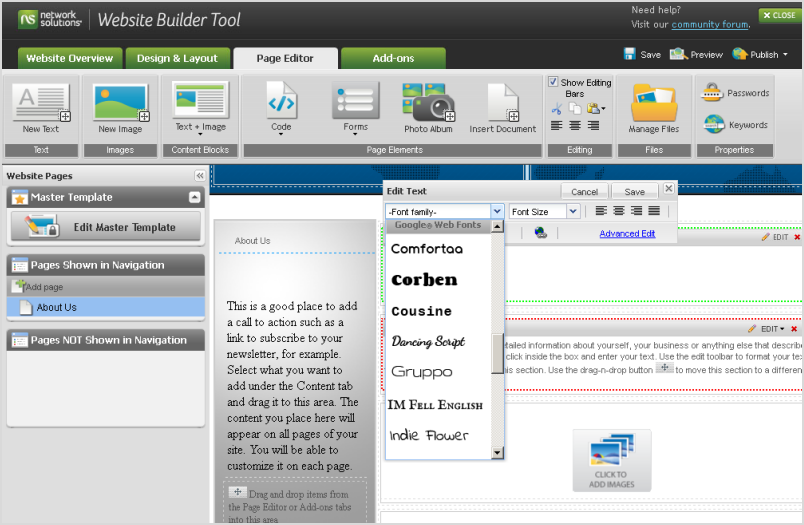
    Network Solutions is one of the largest domain registrars. When you register a domain with them, you can quickly and easily create a website using the Website Builder Tool. In the Page Editor, you can simply select a font from a drop down list in the typography palette for any text area:


    Get a domain from Network Solutions, create your site and you’re good to go with web typography!

    Read more at the Network Solutions blog.

    Are you a web developer, looking to present our growing collection to your users? If so, you should definitely check out the Google Web Fonts Developer API, which allows convenient programmatic access to a list of all fonts in the directory.

    Web Fonts, now more compressed

    One of Google’s core principles is that "fast is better than slow", and the Web Fonts team takes that to heart. We’re always looking for ways to make web fonts load faster, and that’s doubtless a key factor in our rapid user adoption. Today, we are announcing a new way to make web fonts smaller and faster, in collaboration with the Monotype Imaging Fonts.com Web Fonts team. Google Web Fonts now implements Monotype Imaging’s MicroType Express compression format, which yields an approximate 15% savings in file size over using gzip alone. This change will automatically speed up Google Web Fonts for Internet Explorer browsers (version 6 and up). We’re also actively working to offer improved compression with other modern browsers, including Google Chrome.

    We’ve kept the interface simple, so designers don’t need to update their integrations in any way — we’ll automatically upgrade the CSS snippet and font files so that site designers and visitors get their fonts faster. We’ve done this for previous speed optimizations as well, such as automatically stripping the hints (metadata used for improving rendering quality on Windows) when serving fonts to Mac, iOS, and Android clients. We expect that most future optimizations will also be automatic and transparent.

    Monotype Imaging has agreed to make MicroType Express available to the public at no cost; the license can be found at monotypeimaging.com/aboutus/mtx-license. We believe it’s friendly to both open source and proprietary implementations.

    Today, we are also releasing an implementation of MicroType Express compression as part of the Embedded OpenType converter in the open-source sfntly library, adding to the existing WOFF compression. The sfntly library, developed by the Google Internationalization Engineering team, serves as the core conversion engine in Google Web Fonts for subsetting, hint stripping, and related functions of our dynamic serving path. We hope that all web font services, as well as people hosting their own web fonts, will use sfntly to optimize font serving across the web.

    We are proud to be working with Monotype Imaging, and we look forward to learning more from designers, users, sites and other partners to advance the state of web fonts together!

    Posted by Raph Levien, Engineer, Google Web Fonts

    The Next Gen of UC - Microsoft Lync - Live Seminar

    "LYNC" up with us at the location nearest you to discover how your business can:
    • Lower operating expenses
    • Improve employee productivity
    • Increase customer satisfaction
    EVENT DETAILS:

    This event is focused on addressing your business challenges and will be interactive. Unified Communications Strategist, Marty Parker, will be our keynote speaker. This will be a great way to get the latest look at Microsoft Lync Server 2010: the next generation of Microsoft Office Communications Server 2007 R2.Lync Server 2010 offers:
    • A single interface uniting voice communications, presence, instant messaging, and audio/video/web conferencing.
    • A familiar user experience accessible through MS Office, SharePoint, and Exchange.
    • Interoperability with existing systems for smoother deployment and migration.
    At each location, we will be raffling Jabra headsets, Polycom CX100 speakerphones and a UC Readiness Assessment valued at over $2000!  Lunch will be provided.

    AGENDA:

    December 6th, 2011

    10:30am -11:00am - Registration, Coffee
    11:00am -11:30am - Keynote – Marty Parker
    11:30am -11:45am - Your Business Challenges
    11:45am -12:30pm - Demonstrating Solution Applications& ROI Possibilities
    12:30pm - 1:00pm  - Lunch & Connecting
     1:00pm  - 1:15pm  - Q & A and Wrap Up
     1:15pm  - 1:30pm  - Raffle for gifts

    Seating is limited – Reserve your spot today!
    • Irvine, CA
    • Bellevue, WA
    • Santa Clara, CA
    REGISTRATION LINK
    We look forward to having you participate in this exciting event!

    KEYNOTE SPEAKER:


    Marty Parker
    Prinicipal UniComm Consulting - UniComm ConsultingMarty is focused on helping enterprises improve their business results through Unified Communications. To achieve this goal, Marty recently co-founded UniComm Consulting, the industry's premier Unified Communications consulting firm.

    HOSTED BY:


    VOX Network Solutions, Inc. is a sole source provider for converged infrastructure (voice and data) converged applications, services including planning and design, installation and integration, optimization and evolution, maintenance and monitoring and network services.

    VOX is a Microsoft Gold Partner for Unified Comunications. We are focused on helping our clients successfully deploy Lync, Exchange UM, or migrate Microsoft Office Communications Server 2007/R2 to Lync and to improve collaboration, speed to market, and customer satisfaction.

    Extensis plug-in now supports Google Web Fonts

    Do you use Photoshop® to design your website? Looking to spice it up with cool web fonts like Lobster or Dancing Script? Well, now you can do that and more (with over 280 font families) using Google Web Fonts right in Photoshop®.

    That’s because, today, Extensis has added support for Google Web Fonts to their Web Font Plug-in for Photoshop®. Now, the entire catalog of Google Web Fonts is only a click or two away!


    In addition to making the entire catalog of Google Web Fonts easily accessible, the plug-in takes advantage of the full power of Suitcase Fusion 3. This means that any web fonts you choose to use for your designs are automatically kept up to date, and fully activated as needed. For example, this makes it easy for you to send your Photoshop® files around to your coworkers and not worry whether they have the font(s) installed — it will "just work"!

    The free Extensis Web Font Plug-in for Photoshop® can be downloaded now, from: webfontplugin.com

    Posted by David Kuettel, Technical Lead, Google Web Fonts

    Interview with Polish Type Designer Ania Kruk


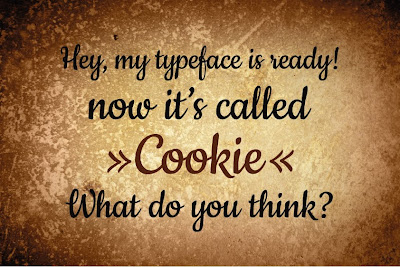
    Ania Kruk is a type designer from Poznan, Poland. She currently lives and works in Barcelona and Google Web Fonts is proud to include her first published typeface, Cookie.

    Q: What is your background as a designer, and how did you become interested in type design?

    Actually, I'm still a beginner in the world of type design: I have drawn letters for only 2 years. I've recently graduated from the University of Arts in Poznan, Poland. Originally, I studied product design, but after 3 years I found myself more interested in graphics than in furniture.

    So I took a one year break and moved to Barcelona, Spain, where I worked as an intern in Estudio Mariscal (which was quite an experience, as they were working on the 'Chico y Rita' movie at that time), and did a one-year Masters in Typography and Editorial Design at Eina, Escola de Disseny i Art.

    When I came back to Poland for my last year of studies, I was 100% sure that I wanted to focus on type design.
    And here I am now, 3 months after my graduation, with my first typeface to be published: Cookie :)

    Q: What is your favourite part of the type design process, and why?

    Generally, I'm interested in complex, narrative projects that require creating a whole from various elements (meaning: editorial design, information design, typography). Type Design is not about designing one letter, it's about creating a system: the alphabet.

    I like the moment when you can start writing words and sentences with your letters, because then you can actually work on the flow and on the balance between the characters. For example, to make some of them more 'normal', transparent, in order to make others more distinctive or decorative.

    Q: Designing a new typeface is a long journey. What inspires you to keep motivated throughout all the different stages?

    For sure, Type Design is all about details, that an average user won't even notice, so you need to be patient to do this kind of work. I'd say I'm quite competitive, so when I see other peoples projects and I think 'Wow, that's so cool!', it get's me motivated ;) I spend an awful amount of time digging through the internet, checking out blogs, personal websites, etc.


    Q: Can you recommend how other type designers can learn the skills involved in making type?

    It's hard to say, because I'm still learning myself. But I'd say that calligraphy and drawing are essential to understanding the construction of the letters.

    Q: What do you think could be improved about the type design process?

    For me the hard part is hinting ;)

    Q: What inspired you to create Cookie?

    Cookie is a script typeface, based on brush calligraphy. It has a little bit of the 1950s look, that makes you think about all the beautiful ads and pin-ups from this time. It's sweet and friendly - but not too decorative. I tried to keep it simple and legible.

    Q: Did you try to accomplish something specific with this typeface design, and did you succeed?

    It's my first script typeface, so the whole design process was like discovering a new way of working. I wanted to create a typeface with a nice flow between the letters, and I wanted the letters to join in a natural way - that's the tough part, if you think about all the possible combinations between 26 lowercase characters. I hope it works ok...!

    Q: What kinds of uses are most appropriate for this font?

    Its clearly a display typeface, suitable more for titles than main texts. But it can be used for short texts, if you're aiming for a hand-written look. It will look good on an invitation, menu, recipe... poster, flyer or as a header of your blog :)

    Q: What are your favourite fonts, and why?

    Well, I don't really have any favourites. It all depends on the context and what you want to communicate: a typeface can be perfect for one kind of a job, but look horrible when misused.

    There are some surprises: I've always considered Mistral by Roger Excoffon as very kitsch and ugly, until I've seen it in on the opening credits for the movie 'Drive'. It looked just great, combined with the music and pictures.

    Avaya's New ACE 3.0 for Microsoft Lync Offers the Best Integration

    Provide users with a unified desktop experience by extending Avaya real-time communications to Microsoft Lync, Office 365 and other Microsoft applications. Tight integration keeps the client interface consistent and allows users to communicate from their preferred devices. Your enterprise can improve productivity while reducing costs, as Avaya client-side integration preserves existing communications investments and requires no Microsoft voice licenses or devices.

    Avaya Agile Communication Environment (ACE) Microsoft Lync Integration allows users to control their Avaya or Cisco phones and view telephony presence from within the Microsoft Lync/Communicator client, Microsoft Office, and Internet Explorer. The Lync/Communicator client can be used as a soft phone to drive calls through the Avaya Aura infrastructure and both premise and cloud-based Lync integration options are supported. For off-the-shelf integration with Microsoft Dynamics and Salesforce.com, users can add the Avaya ACE CRM Integration packaged application. Like other out-of-the-box Avaya ACE packages, these are quick to deploy and can generate high financial returns for enterprises seeking to integrate Avaya and select third party communication systems with business applications.

    Reduces Costs
    Protect investments in Avaya infrastructure and desktop phones with Avaya ACE Microsoft Lync Integration. Avoid investments in duplicate back end infrastructures and leverage Avaya Aura® to standardize on one voice, video, and unified messaging network with single dial plan, trunk consolidation, and centralized management and applications. Eliminate costs associated with Microsoft voice licenses and related devices, as Avaya integration requires only Microsoft Lync/OCS Standard client access licensing. Deploy the application to users quickly and cost effectively.

    Improves Productivity
    End users access a combination of Microsoft presence, instant messaging and Avaya enterprise-grade business communications in an intuitive, unified experience. The Lync client experience remains consistent and users continue to communicate from their preferred devices. Multi-modal communication from the desktop helps end users connect, communicate and collaborate to deliver projects without delay.

    Key Features
    Telephony presence integrated with Microsoft Lync or Communicator clients can increase productivity by giving users improved visibility into a person’s availability (e.g. not on a phone call) and how he or she can be contacted.

    Click-to-call via the Avaya ACE call menu option from Microsoft Lync or Communicator, Microsoft Office, or Internet Explorer lets users control their Avaya Aura Communication Manager, Avaya Communication Server (CS) 1000, or Cisco Unified Communications Manager desk phones from these desktop applications. Microsoft Lync-controlled access settings enable users to configure which phone numbers colleagues, customers, and partners see. Enhanced resiliency helps ensure established phone calls continue even in the event of a Microsoft Lync reboot.

    Premise-based or Office 365 Microsoft Lync support means organizations may deploy Lync/Communicator clients as part of a Microsoft on-premises system or as a hosted, “cloud” based service.

    Escalate from IM to a phone call capability lets users transition automatically to an Avaya or Cisco controlled phone call from a Microsoft Lync instant message.

    Conversation window for mid-call control provides easy access to Avaya telephony features from the Microsoft Lync or Communicator user interface, including call forwarding, hold and retrieve, transfer, conference and a keypad for entering DTMF tones, such as when using passcodes to enter a conference call. Volume and mute controls are also presented for calls made in computer mode. Likewise, calls originating from a desk phone can be controlled via the Conversation Window.

    Toast pop-up enables easy call answering or incoming call diversion to an alternate device.
    Multiple call handling* enables users to maintain one active call while having one or more calls on hold. Users can swap between active and held calls, transfer active calls to an on-hold user, join active and held calls to form a conference and add further held calls into the conference call. A toast pop-up shows any calls waiting (alternative call) and allows a user to answer the alternative call and place the active call on hold.

    Computer and desk phone modes let users remotely control their familiar Avaya or Cisco connected desk phones or use the PC for calls. For computer calls, Avaya provides a desktop media engine that delivers calls through Avaya Aura® using open codecs: G.711, G.722, and G.729. When on the move, users are prompted to change modes. For example, switching from a remote network (such as a home office) to a corporate location prompts a change to desk phone mode, so the user no longer risks missing the first call.


    Enterprise dial plan and E.164 support enables employees to use familiar internal extension number dialing as well as national and international number dialing.

    Synchronized call forwarding across the desk phone and Microsoft Lync/Communicator client helps give the user complete control of call forwarding settings and avoid unintentional overrides. For example, if a user has cancelled call forwarding on his or her desk phone, the application prevents previous settings on Microsoft Lync from inadvertently re-establishing call forwarding during sign-in.

    Single sign-in means users only need to use Microsoft Lync/Communicator sign-in methods to make calls using Avaya Aura®.

    Silent install lets IT install the Avaya ACE-Microsoft Lync client and Avaya UC desktop engine for computer mode calls in a single step without end user intervention.
    Localization support for simplified Chinese, Japanese, Korean, English, French, German, Italian, Russian, Lat-Spanish, and Brazilian-Portuguese is also available.
    Requirements
    Avaya ACE™ Lync Integration requires:

    • Avaya Aura Communication Manager 5.2.1, 6.x with Avaya Aura Application Enablement Services 5.2.3 or higher (phone mode and computer mode) and UC desktop licenses
         Or
    • Avaya Communication Server 1000 6.0 to 7.5 with TR/87 and AST licenses (Avaya ACE 3.0 phone mode only, computer mode requires ACE 3.1)
         Or
    • Avaya Communication Server 2100 release SE13 (Avaya ACE 3.0 phone mode only)
         Or
    • Cisco Unified Communication Manager 6.0+ (Avaya ACE 3.0 phone mode only)
         And
    • Avaya UC Engine 6.1
    • Avaya ACE:
         »» ACE Core Service 3.0 or later on Linux (Red Hat 5.4 with WAS 7.x)
         »» ACE AIE 3.0 or later running on Win Server 2008 R2

    NOTE: Avaya System Platform support enables a single server to support the Avaya ACE Base Server and Avaya Aura Application Enablement Services. A second server is required to deploy the Avaya ACE Application Integration Engine.

    Microsoft Lync
    • Microsoft Lync Server 2010 and Microsoft Lync Server 2010 Client
    • Client PC on Microsoft Windows XP SP2 or later or Windows 7 SP1
    • Microsoft .Net 3.5 SP1 or later

    Microsoft OCS 2007 R2
    • Microsoft OCS 2007 R2 and Microsoft Communicator Client R3.5.6907.196 or above
    • Client PC on Microsoft Windows XP SP3 or later or Windows 7 SP1
    • Microsoft .Net 3.5 SP1 or later

    Microsoft Desktop
    • Microsoft Internet Explorer 6.0 to 9.0
    • Microsoft Office 2007 / 2010

    For more information contact VOX Network Solutions at: http://www.voxns.com

    Kickstart new fonts!

    Google Web Fonts is proud to announce a new funding experiment, using Kickstarter - a popular way to fund creative projects.

    Each month there are many typeface designs proposed to our team for publication and financial support. But we can’t support everything! Even with the best quality proposals, it can be hard to decide about those that are quite similar to ones already published. Really the best judge of which web fonts you want to use is you!

    So we invited the designers of three recent proposals to try out Kickstarter and see how it works for font projects. There are some fun rewards for pledging a contribution so click through to see the details!

    Folk


    First is Marcello Magalhaes’ Folk, which transforms the vernacular lettering of Sao Paulo into a font. Already popular as web font, it has been used by The Independent Film Channel and Mozilla - but it only includes an uppercase set of glyphs, and not all the symbols and accents that Google Web Fonts requires. For this project, Marcello will complete the font to the Basic Latin character set, and has designed a poster to go with the new release.

    Fast Brush Script


    Fast Brush Script is the working name for a font by Pablo Impallari. Pablo's first font, Lobster, is one of the most popular Google Web Fonts, having been served over 2 billion times.

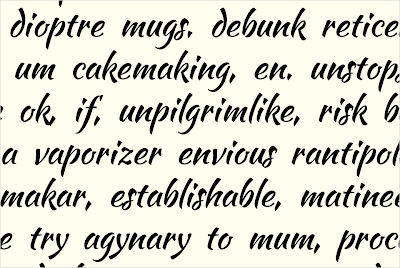
    Pablo is offering a very unusual reward - choosing the name! Normally the name of a font is sacred to the designer, but Pablo is opening up the opportunity for corporate patronage of his work. The development name 'Fast Brush Script' reflects the core concept of the typeface. This font is currently in an early development stage with the lowercase letters now fully prototyped, as you can see above, and you can download the current develop version from the Kickstarter project page.

    Montserrat


    Montserrat is an extremely high quality sans serif text typeface by Julieta Ulanovsky. Advancing substantially during her studies at the prestigious University of Buenos Aires' Masters degree in Typeface Design, the design revives the historical type of the Montserrat neighbourhood where Julieta lives and works.

    This genre of type has been a popular trend in recent years and this typeface in particular stands out with its excellent quality. Setting it apart are the set of alternative caps, which add a little fun to a very functional text typeface.


    The Google Web Fonts team has already contributed directly to these Kickstarter projects, and we hope you will also become a backer for all three projects as well - let's hope the type designers will be paid far beyond their minimum funding goals!


    Update: When fonts are made available in Google Web Fonts, all their source files are also available from the 'Google Font Directory' Google Code Project in a Mercurial version control system, under a free, libre and open source license - typically the SIL Open Font License.

    Posted by Dave Crossland, Font Consultant, Google Web Fonts